


Get help for Seller’s App here
Before adding products, we recommend the following tips to increase your chances of making sales faster:
Use High-Quality Product Images
Upload square-shaped images that clearly focus on the actual product. A clean white background is recommended to help your product stand out and attract more buyers.
Provide Complete Product Information
While most product details are optional, adding as much information as possible helps customers make informed decisions and can improve your product’s visibility and sales potential.
Offer Discounts and Promotions
Consider adding discounts in the Pricing & Tax section. Discounted products are more attractive to customers and can help increase conversions and sales.
Following these recommendations can help your products look more professional and improve their chances of selling quickly.
Step by step on how to add a product #
In this tutorial, I have indicated the information that must be provided with the label Required and the information that can be skipped with the label Optional. Follow these guidelines when adding your products to ensure they are listed correctly and ready for customers.
1. How to get started #
Visit your seller dasboard>click on Manage products>Add product
Watch video to learn how you can add products or continue reading below
2. Select category #
- Search or select main category>sub category and click on next below. (Required)
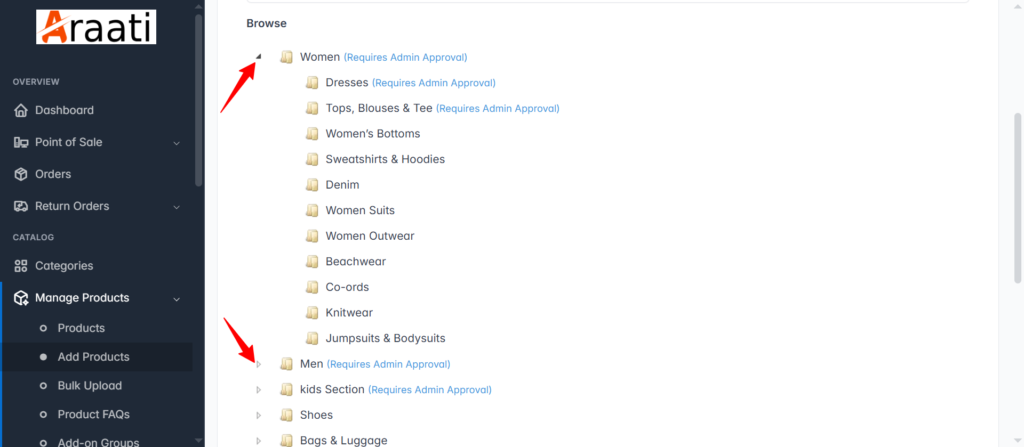
3. Product Info #
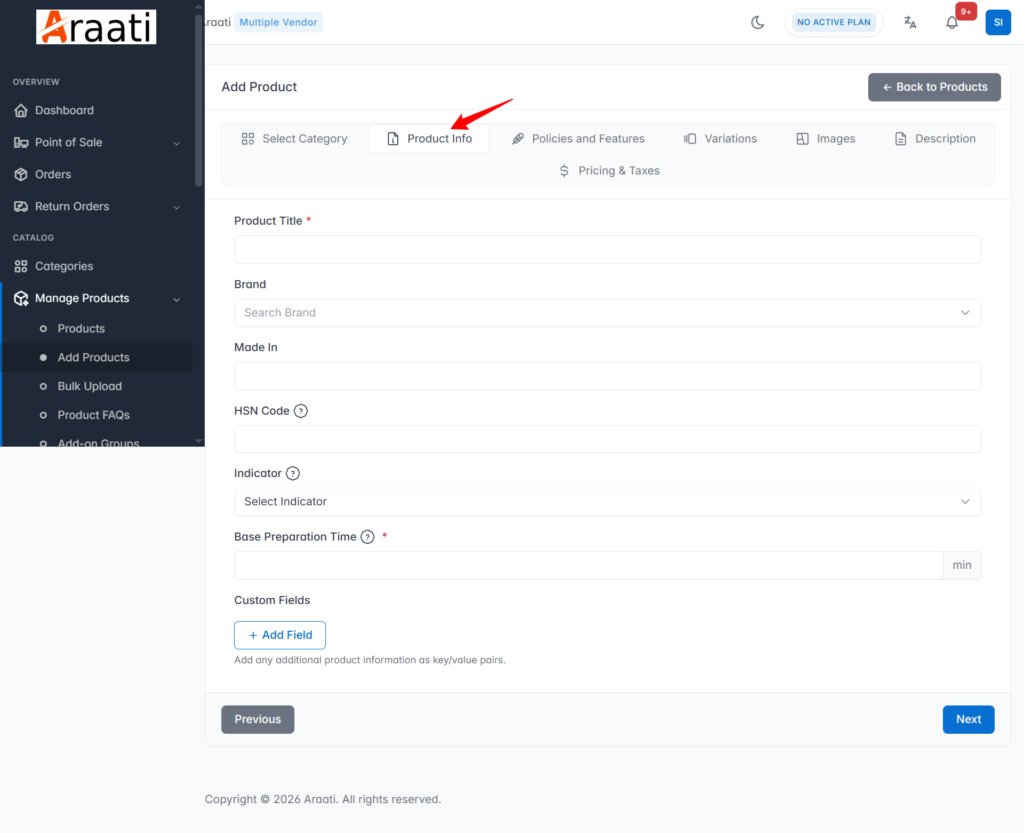
- Type product name/Title (Required)
- Seach or type product brand (Optional)
- Enter product Made in. (Optional)
- Enter product HSN Code for tax purposes (Optional)
- Select Veg or Non veg in the Indicator section (Optional)
- Base Preparation Time; Type how estimated minutes you will spend preparing this product for delivery. (Optional)
- in the Custom Fields space, enter any other product information you would like to share with customers. (Optional)
4. Policies & Features #
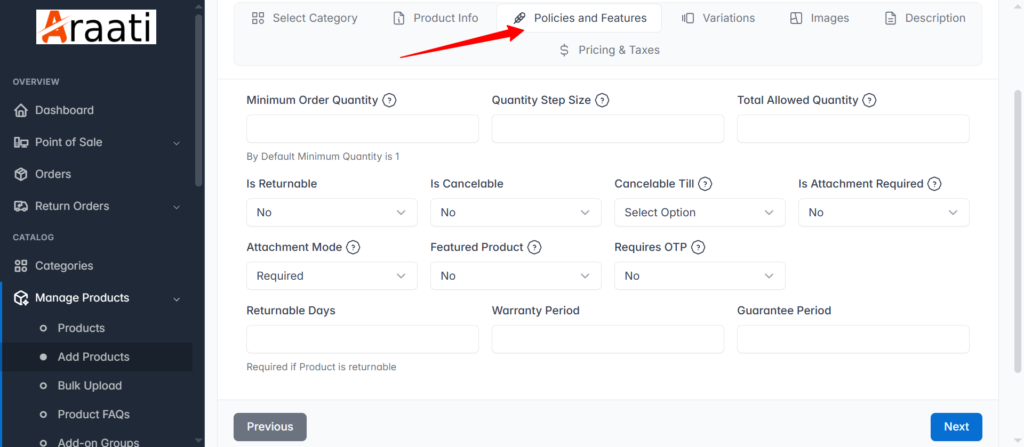
- Enter all necessary information (Most of these are optional and you can skip them) To understand what they mean, click on the question marks. (Mostly Optional)
5. Variation #
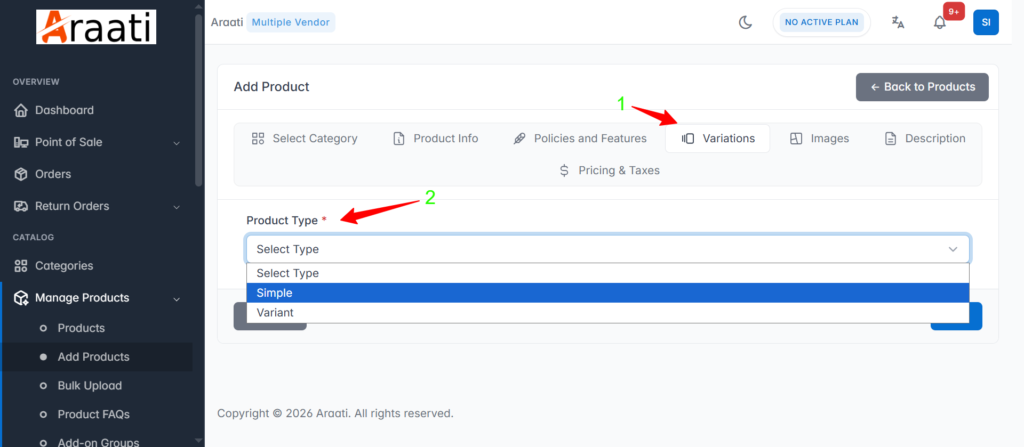
In the Product Type section, Select simple for product which do not have attributes eg size, color, age etc. Select Variant if this product has different sizes, colors etc (Required)
Note: Before selecting Variant as product type, please make sure you added Attributes and the required values as shown here
6. Images #
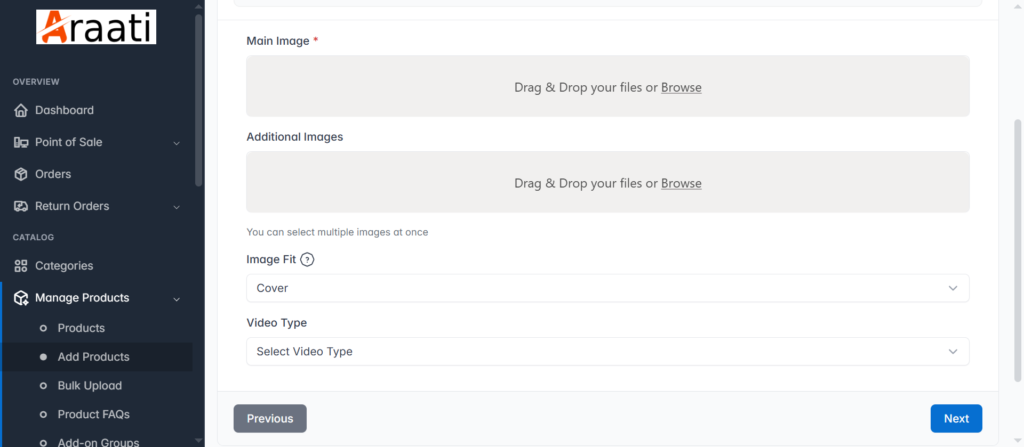
Main Image. Upload your product images (Required)
Additional Images. Add more image for your product (Optional)
Upload product video or paste Youtube link
7. Description #
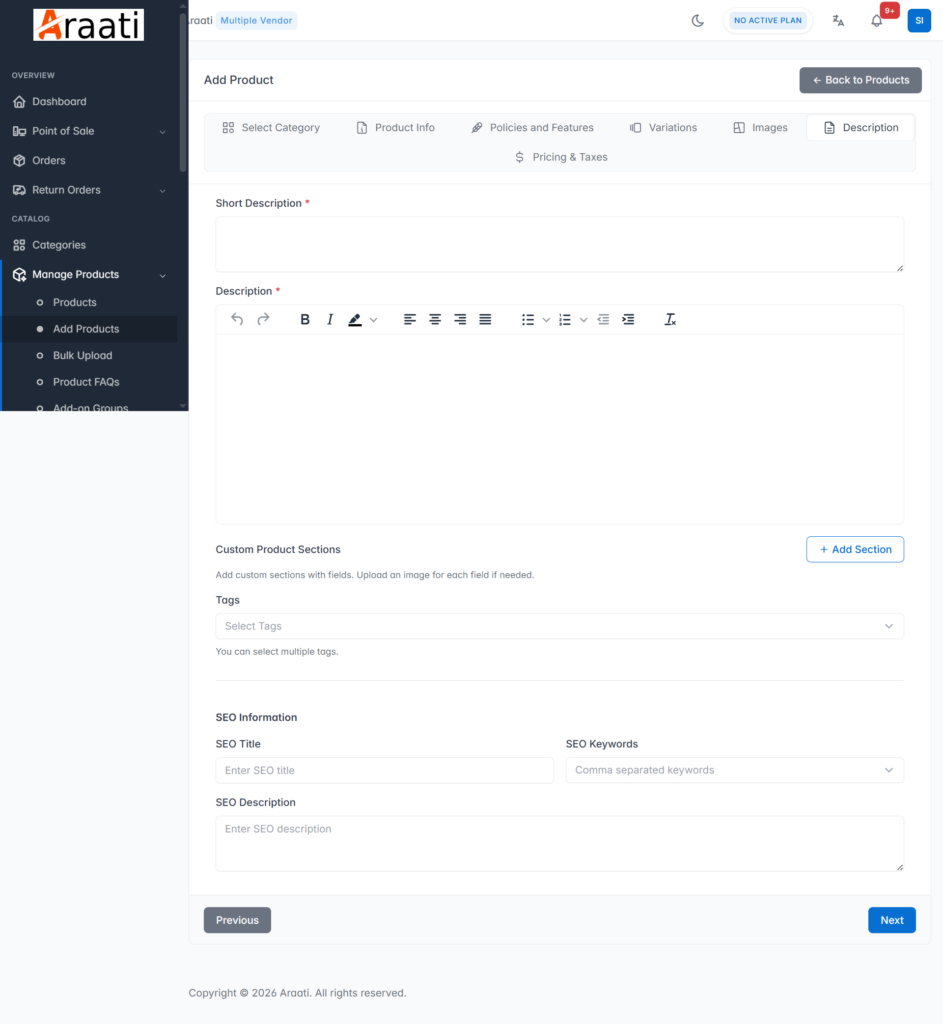
- Type Short Description (Required)
- Type or paste Full description for your product (Required)
- You can Custom Product Sections (Optional)
- Add tags. increase product visibility (Optional)
- SEO Information. Improves your product visibility on google and other search engines (Optional)
- Click Next
8. Pricing & Taxes #
- Tax Group. Add tax to your product, it will apply at checkout (Optional)
- In the Store-wise Pricing Click on the Add Store button and select your store for this product
Now, its time to enter prices for simple or Variant product.
Simple Product Type Pricing #
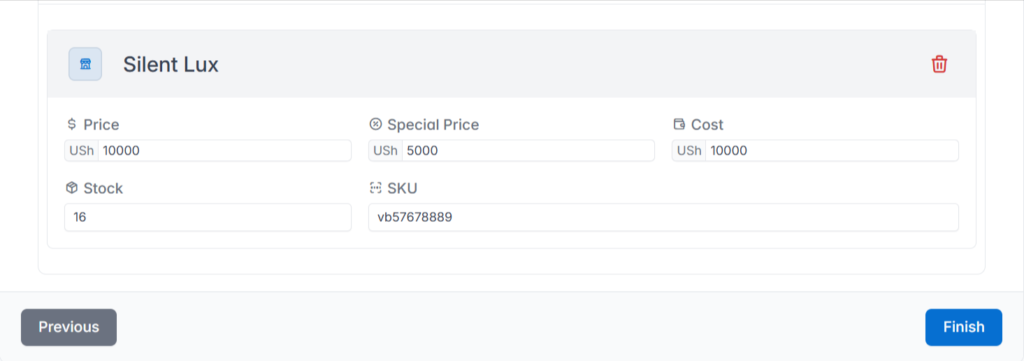
- Price– enter your product final price
- Special Price– enter discounted price or leave empty if you are not willing to give a discount.
- Cost– Enter price for a single unit product. Tip; enter same amount as Price.
- Stock– enter available quantity of this product eg 15
- SKU– Enter any numbers, word, letters. make sure they are unique for each product
Variant Product Type Pricing #
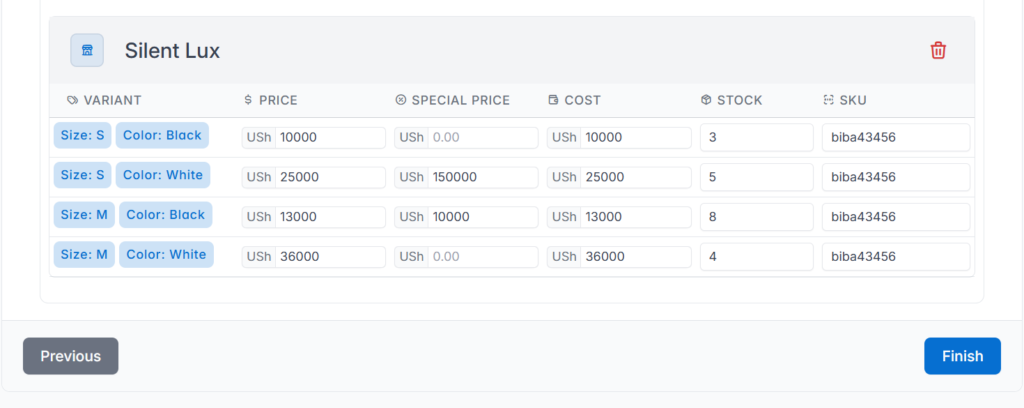
- Variant – These are attributes and attribut values you selected before
- Price – Enter final price you are selling this variant
- Special Price – Used to give discount, you can enter lower price amount as shown in the image above. Where your not willing to give discount, leave space empty.
- Cost – This is the final price you are selling a specific variantion. Tip enter same amount as Price.
- Stock– enter available quantity of this product eg 15
- SKU – Enter any numbers, word, letters. make sure they are unique for each product. Tip; You can use the same SKU code for all variations of this product.
You can now click on the FINISH button to submit your product.


