


Adding a product on Araati is done within 7 steps
✅ Required: Marked with * These fields must be completed before you can submit.

⚪ Optional: These fields are recommended but can be skipped if you don’t have the information.
To start these steps, open Araati seller app>Click on Products>Add new Product.
Watch Video or continue reading below
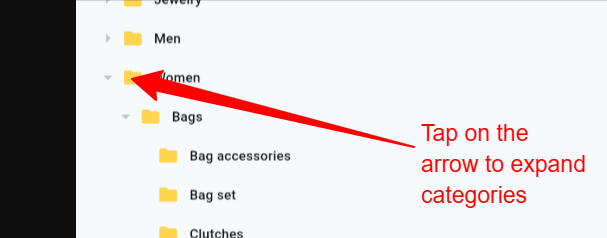
Step 1 Select Category #
Select Category for your product (Use the arrow on each category to expand category options)
Step 2 * Product Information* #
A. Enter title for your product (Required)
B. Select Brand (Optional) You can contact support to add your missing brand
C. Select Made in for your product (Optional)
D. Enter Product HSN Code (Optional)
E. Select indicator (Veg=Vegetarian Non-Veg=Non-Vegetarian) (Optional)
F. Base Prep Time. Enter estimated time ‘in minutes’ you will take to prepare this product for delivery.
G. Custom Fields. Here you can add extra information for this product. Click Add field>Enter any additional info and it’s value. (Optional)
Step 3 Policies & Features #
A. Minimum Order Quantity Enter the minimum number of units a customer must purchase for this product.
Example:
If you enter 1, customers can buy one item.
If you enter 5, customers must buy at least five items. (Required)
B, Quantity Step Size. Set the number of items customers can increase or decrease when placing an order.
Example:
Step size 1 → Customers can buy 1, 2, 3, 4 items.
Step size 5 → Customers can buy 5, 10, 15, 20 items.
Use this option if you sell products in fixed quantities or bulk packages. (Required)
C. Total Allowed Quantity Set the maximum number of units a customer can purchase for this product in a single order.
Example:
Enter 10 → A customer can buy up to 10 units.
Enter 100 → A customer can buy up to 100 units. (Required)
D. Toggle Is Returnable and enter days a customer can not exceed to return this product. (Optional)
E. Toggle Is cancellable and select on which stage can a customer cancel an order for this product. (Optional)
F. Required OTP if this product require an otp for on delivery (Optional)
G. Featured Product. Toggle this on to add this product in featured section. (Optional)
H. Is attachment Required. Toggle this on if this product requires a document like prescription (Optional)
I. Warranty Period. Enter product warranty (Optional)
J. Guarantee Period. Enter Guarantee period (Optional)
Step 4 Product Variation #
A. Product Type.
*Select Simple Product for products which do not require customer to select options like size, color, material etc
*Select Variable Product if you would like customers to choose sizes, color etc
How to Add a Simple Product #
Select Simple Product as the Product Type. (Required)
Enter a Barcode. (Required) You can use any combination of letters and numbers.
Enter the product Weight, Height, Length, and Width. If you don’t have these measurements, you can enter 0 for all fields.
Tap Next to continue. ????
How To Add Variable Product #
*Select Variable Product>Click *Add Attribute>Select Attribute* eg Size ( You can add different attributes as you want here and select desired values. (Requird)
As you select different Attribute values, Araati app will generate different variants for the values you have selected
*Enter a name for this product variant.
You can use the same name you entered earlier or create a new one. Each variant must have a unique name so it can be identified easily.
Example: Red – Small,
Read full documentation on how to Add Variable product
or Read in full who should use Variation products here
Step 5: Product Image #
Upload Main Image ( Recommended ratio is 1:1 square shape) (Reqired)
Upload additional images for your product. (Optional)
Select Video Type: For Youtube video must be uploaded to Youtube and you paste it’s link here. Self hosted: Video must be on your device>Click on upload video to upload it. (Optional)
Step 6: Product Description #
*Type short description for your product.
*Type full description for your product.
*Enter tags for your product and click next
Step 7: Pricing & Taxes #
Tax: Select a tax for this product (optional).
Store: Choose the store/branch where this product will be sold.
Price: Enter the selling price.
Special Price: Enter a discounted price (optional).
Cost: Enter the product cost (you can use the same amount as the selling price if needed).
SKU: Enter a unique code using letters and/or numbers.
Stock Quantity: Enter the number of items available.
When you’re done, tap Submit to save your product.
Our team will review and approve your poduct within the next minutes


